graph TD;
A[r_training] --> B[scripts];
A --> C[data];
A --> D[outputs];
Data Importing, Tyding and Writing
R Training
Good Practice in Project Organization
When starting a new analysis, organize your work by creating a structured folder system:
📁
r_training📂
scripts/(code)📂
data/(datasets)📁
outputs/(results like plots, tables, etc.)
Note
Use lowercase and hyphens (-) instead of spaces when naming folders, files, and objects in R to maintain consistency and ease management.
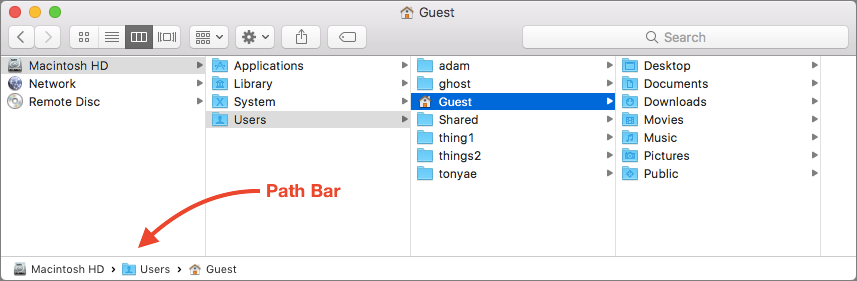
Understanding Folder Paths
- A path is an address that tells a software where to find a file or folder on your computer.
Two Types of Paths:
- Absolute Path:
/Users/yourname/Desktop/r_training - Relative Path:
r_training/scripts
The Advantage of Using Projects
R doesn’t automatically know where your files are. Using an RStudio project creates a shortcut that tells R where to find everything, making your workflow smoother.
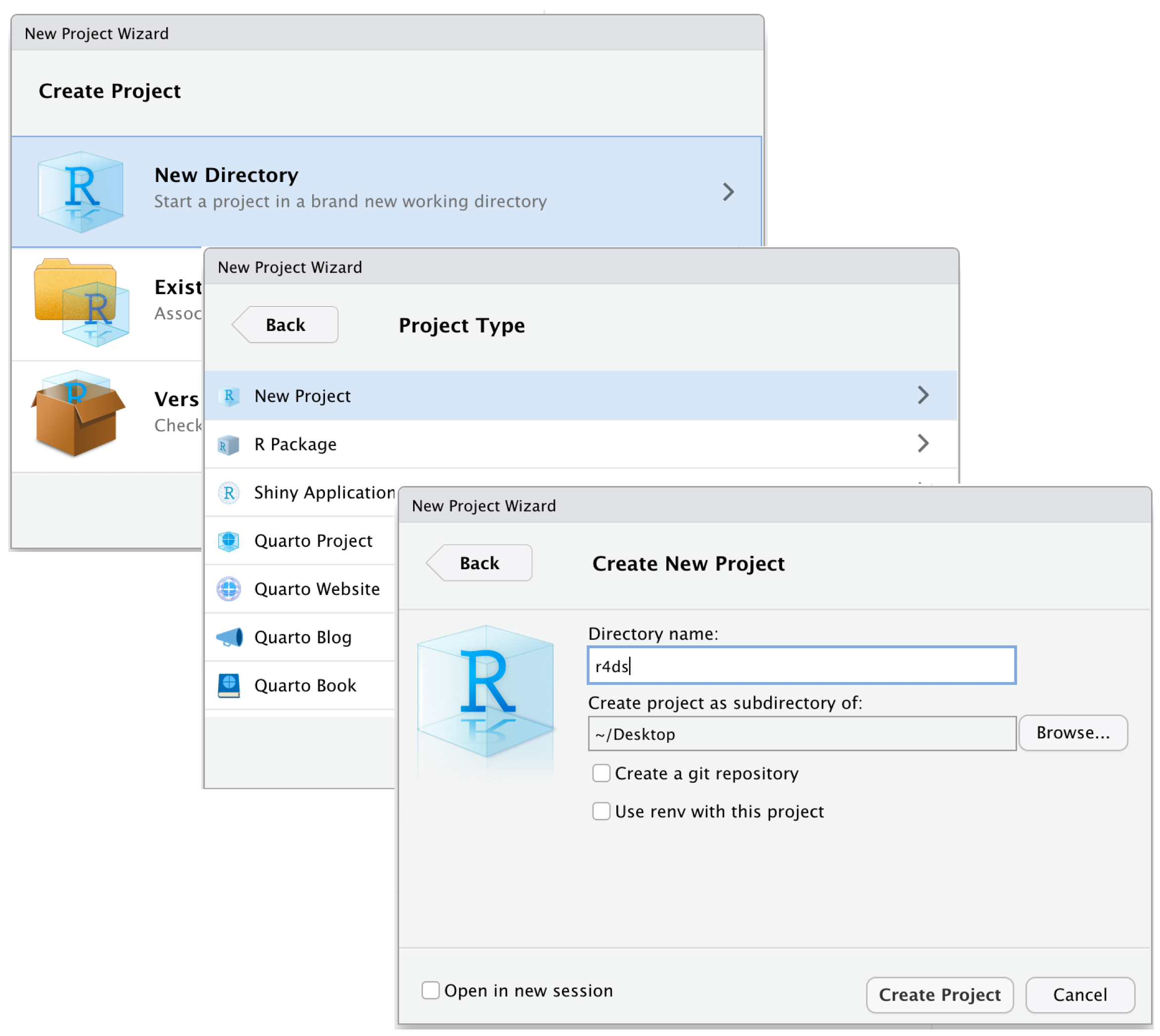
Setting Up Your Environment
05:00 Create a new Folder named
r_trainingCreate a Project
- Open RStudio.
- Go to File > New Project > Existing Directory.
- Browse to your
r_trainingfolder and click Open.
- Click Create Project to finish.
Open the Project (Double-click the file to open it in RStudio.)
Run this command in the RStudio Console:
- Follow the prompts to unzip the materials into your project folder.
You’re all set to begin! 🎉
Organizing the data Folder
graph TD;
A[data] --> B[Raw];
A --> C[Intermediate];
A --> D[Final];
Raw
- Original, untouched data.
- Backup recommended to preserve integrity.
Intermediate
- Data formatted, renamed, and tidied.
- Ready for further cleaning.
Final
- Cleaned and transformed data.
- Ready for graphs, tables, and regressions.
Import
Preparing Data for R: General Concepts and Best Practices
Document Types organizations extensively rely on spreadsheets (read)
Common data formats include:
Spreadsheets (.csv, .xlsx, xls…): Standard for structured data.
DTA (.dta): Used for data from STATA.
Spreadsheets
CSV is generally preferable:
Easier to import and process.
More compatible across different systems and software and much lighter.
Advanced
The Apache Arrow format is designed to handle large data sets efficiently, making it suitable for big data analysis. Arrow files offer faster read/write operations compared to traditional formats.
Importing Data into R
Exercise 1: Data Import
You can find the exercise in the folder “Exercises/exercise_01_template.R”
10:00 Your tasks:
Load packages using
pacmanImport three datasets:
firm_characteristics.csv(usefread)vat_declarations.dta(useread_dta)
cit_declarations.xlsxsheet 2 (useread_excel)
- For each dataset:
- Display first 5 rows
- Check column names
- Clean names with
janitor::clean_names()
- Bonus: Ensure firm ID columns have the same name across all datasets
Exercise 1: Solutions
# Load packages
packages <- c("readxl", "dplyr", "tidyverse", "data.table", "here", "haven", "janitor")
if (!require("pacman")) install.packages("pacman")
pacman::p_load(packages, character.only = TRUE, install = TRUE)

# Load firm characteristics
dt_firms <- fread(here("Data", "Raw", "firm_characteristics.csv"))
head(dt_firms, 5)
names(dt_firms)
dt_firms <- clean_names(dt_firms)

# Load VAT declarations
panel_vat <- read_dta(here("Data", "Raw", "vat_declarations.dta"))
head(panel_vat, 5)
names(panel_vat)

# Load CIT declarations
panel_cit <- read_excel(here("Data", "Raw", "cit_declarations.xlsx"), sheet = 2)
head(panel_cit, 5)
names(panel_cit)

# Bonus: Ensure consistent naming
panel_vat <- rename(panel_vat, firm_id = id_firm)  # if needed
Inspecting Data
Inspecting Your Data: First Look
- Once data is imported, we first want to take a look at it 👀
# A tibble: 6 × 7
  `Taxpayer ID` Name       `Tax Filing Year` `Taxable Income` `Tax Paid` Region
  <chr>         <chr>                  <dbl>            <dbl>      <dbl> <chr>
1 TX001         John Doe                2020            89854       8985 North
2 TX001         John Doe                2021            65289       6528 North
3 TX001         John Doe                2022            87053       8705 North
4 TX001         John Doe                2023            58685       5868 North
5 TX002         Jane Smith              2020            97152       9715 South
6 TX002         Jane Smith              2021            62035       6203 South
# ℹ 1 more variable: `Payment Date` <dttm>
# A tibble: 6 × 7
`Taxpayer ID` Name `Tax Filing Year` `Taxable Income` `Tax Paid` Region
<chr> <chr> <dbl> <dbl> <dbl> <chr>
1 TX009 Olivia King 2022 91276 9127 North
2 TX009 Olivia King 2023 90487 9048 North
3 TX010 Liam Scott 2020 50776 5077 South
4 TX010 Liam Scott 2021 86257 8625 South
5 TX010 Liam Scott 2022 52659 5265 South
6 TX010 Liam Scott 2023 76665 7666 South
# ℹ 1 more variable: `Payment Date` <dttm>Note
You might also notice that the Taxpayer ID and Full Name columns are surrounded by back-ticks. This is because they contain spaces, which breaks R’s standard naming rules, making them non-syntactic names. To refer to these variables in R, you need to enclose them in back-ticks.
Inspecting Your Data: Dimensions
- Check the dimensions of your data:
Inspecting Your Data: Structure
- Get column names and examine the data structure:
[1] "Taxpayer ID"     "Name"            "Tax Filing Year" "Taxable Income"
[5] "Tax Paid" "Region" "Payment Date" [1] "Taxpayer ID" "Name" "Tax Filing Year" "Taxable Income"
[5] "Tax Paid" "Region" "Payment Date" tibble [40 × 7] (S3: tbl_df/tbl/data.frame)
$ Taxpayer ID : chr [1:40] "TX001" "TX001" "TX001" "TX001" ...
$ Name : chr [1:40] "John Doe" "John Doe" "John Doe" "John Doe" ...
$ Tax Filing Year: num [1:40] 2020 2021 2022 2023 2020 ...
$ Taxable Income : num [1:40] 89854 65289 87053 58685 97152 ...
$ Tax Paid : num [1:40] 8985 6528 8705 5868 9715 ...
$ Region : chr [1:40] "North" "North" "North" "North" ...
$ Payment Date : POSIXct[1:40], format: "2020-01-31" "2021-12-31" ...Inspecting Your Data: Better Structure View
- Let’s get a better snapshot of the data structure and content:
Rows: 40
Columns: 7
$ `Taxpayer ID`     <chr> "TX001", "TX001", "TX001", "TX001", "TX002", "TX002"…
$ Name              <chr> "John Doe", "John Doe", "John Doe", "John Doe", "Jan…
$ `Tax Filing Year` <dbl> 2020, 2021, 2022, 2023, 2020, 2021, 2022, 2023, 2020…
$ `Taxable Income`  <dbl> 89854, 65289, 87053, 58685, 97152, 62035, 60378, 876…
$ `Tax Paid`        <dbl> 8985, 6528, 8705, 5868, 9715, 6203, 6037, 8768, 9368…
$ Region            <chr> "North", "North", "North", "North", "South", "South"…
$ `Payment Date`    <dttm> 2020-01-31, 2021-12-31, 2022-01-31, 2023-04-30, 202…
Tip
glimpse() is like str() but more readable! It shows data types, first few values, and fits nicely in your console.
Inspecting Your Data: Summary Statistics
- Generate summary statistics for all columns:
 Taxpayer ID            Name           Tax Filing Year Taxable Income
 Length:40          Length:40          Min.   :2020    Min.   :50438
 Class :character   Class :character   1st Qu.:2021    1st Qu.:58748
 Mode  :character   Mode  :character   Median :2022    Median :78590
                                       Mean   :2022    Mean   :75504
                                       3rd Qu.:2022    3rd Qu.:90287
                                       Max.   :2023    Max.   :98140
    Tax Paid       Region           Payment Date
 Min.   :5043   Length:40          Min.   :2020-01-31 00:00:00
 1st Qu.:5874   Class :character   1st Qu.:2021-04-23 06:00:00
 Median :7858   Mode  :character   Median :2022-01-15 12:00:00
 Mean   :7550                      Mean   :2022-01-02 09:00:00
 3rd Qu.:9028                      3rd Qu.:2023-01-07 18:00:00
 Max.   :9814                      Max.   :2023-11-30 00:00:00
Tip
summary() is incredibly useful! For numeric variables, it shows min, max, mean, median, and quartiles. For character variables, it shows length and class.
Cleaning Column Names
- Now, we’ll make sure that our variable names follow snake_case convention 😎
- Option 1: Rename columns manually:
- Option 2: Automatically convert all column names to snake_case using janitor:
[1] "taxpayer_id"     "name"            "tax_filing_year" "taxable_income"
[5] "tax_paid"        "region"          "payment_date"
Exercise 2: Inspecting Data
You can find the exercise in the folder “Exercises/exercise_02_template.R”
10:00 Your tasks:
Using the three datasets you imported in Exercise 1:
- For
dt_firms:
- Check dimensions (rows and columns)
- Use
glimpse()to examine structure - Generate summary statistics
- For
panel_vat:
- Display first 10 rows
- Check number of unique firms
- Find column names
- For
panel_cit:
- Display last 5 rows
- Check if there are any missing values using
summary()
Exercise 2: Solutions
Writing Data in R
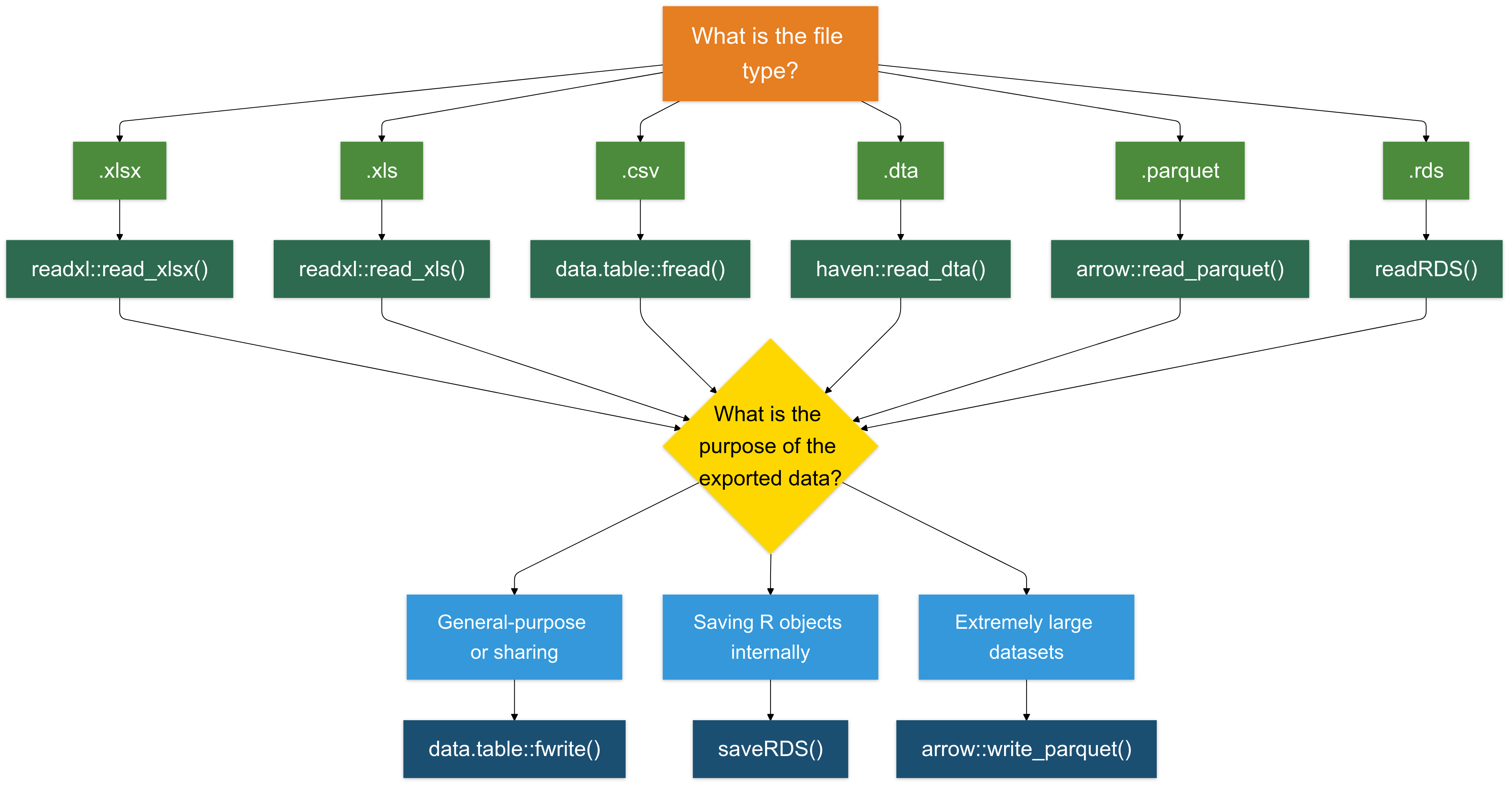
Writing in .csv Format is (Almost) Always a Good Choice
For most cases, writing data in .csv format is a reliable and widely compatible option.
I recommend using the
fwritefunction from thedata.tablepackage for its speed and efficiency.
- Below, we save various datasets into the Intermediate folder using fwrite:
# Write the VAT Data
fwrite(panel_vat, here("quarto_files", "Solutions", "Data", "Intermediate", "panel_vat.csv"))

# Write the CIT Declarations
fwrite(panel_cit, here("quarto_files", "Solutions", "Data", "Intermediate", "panel_cit.csv"))

# Write the Firm Characteristics
fwrite(dt_firms, here("quarto_files", "Solutions", "Data", "Intermediate", "dt_firms.csv"))
There other options to write data
Writing .rds Files (For R Objects)
The .rds format is specifically designed for saving R objects. It is useful for saving intermediate results, objects, or data.
We’ll explore this format in more detail later, but here’s a quick example:
- Writing .xlsx Files (For Excel Compatibility): To save data in Excel format (.xlsx), use the writexl package. It is lightweight and doesn’t require external dependencies.
- Writing .parquet Files (For Large Datasets): The .parquet format is a columnar storage format that is highly efficient for both reading and writing large datasets (typically >1GB).
To Sum Up
Exercise 3: Write Clean Data
You can find the exercise in the folder “Exercises/exercise_03_template.R”
05:00 Your tasks:
Save the three cleaned datasets in different formats:
Firm characteristics → CSV
Save asdata/intermediate/firms_clean.csvusingfwrite()VAT declarations → RDS
Save asdata/intermediate/vat_clean.rdsusingsaveRDS()CIT declarations → Parquet
Save asdata/intermediate/cit_clean.parquetusingwrite_parquet()Bonus: Why did we choose different formats for each dataset?
Exercise 3: Solutions
# Load required packages
library(data.table)
library(arrow)
library(here)

# Save firm characteristics as CSV
fwrite(dt_firms, here("data", "intermediate", "firms_clean.csv"))

# Save VAT declarations as RDS
saveRDS(panel_vat, here("data", "intermediate", "vat_clean.rds"))

# Save CIT declarations as Parquet
write_parquet(panel_cit, here("data", "intermediate", "cit_clean.parquet"))

# Bonus Answer:
# dt_firms (CSV): Reference data, human-readable, shared across departments
# panel_vat (RDS): Preserves R data types, faster loading in R workflows
# panel_cit (Parquet): Efficient columnar storage for large panel datasets
Bonus: Connecting R to Databases
- Why Connect to Databases?
- Data is often stored in centralized databases for enhanced security, accessibility, and management.
- Traditional workflows might involve submitting data requests to IT teams, causing delays and limited flexibility for analysts.
- The Power of
Rfor Database Access
- Using
R, you can: - Query data directly and in real-time.
- Import large datasets seamlessly into your
Renvironment.
Warning
However, I suggest extracting the data using your SQL interface and then working with the extracted data in R.
Example: connecting to a database
# Load Packages
library(DBI) # this package is always needed
library(RMariaDB) # there are packages for each type of database (e.g. MySQL, PostgreSQL, etc.)

# Establish a connection to the database
con <- dbConnect(
  MariaDB(),
  host = "database.server.com",
  user = "your_username",
  password = "your_password",
  dbname = "tax_database"
)

# Query the database
tax_data <- dbGetQuery(con, "SELECT * FROM vat_declarations WHERE year = 2023")

# Disconnect when done
dbDisconnect(con)